
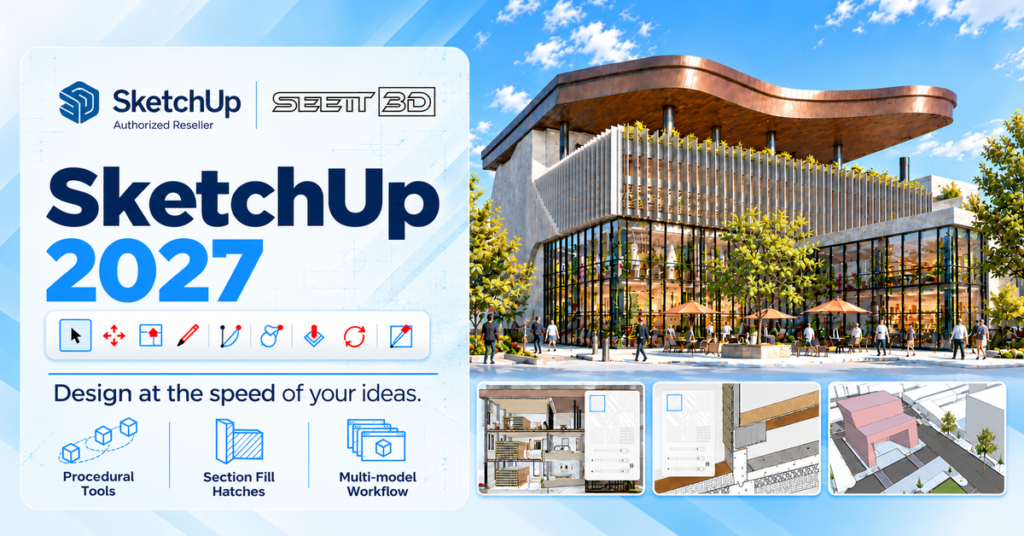
SketchUp Desktop 2027 introduces editable modelling tools, hatch patterns for sections and new LayOut features. For UK architects and interior designers, these updates could help with design iteration and project documentation. Here’s a quick look at the main changes and what to check before upgrading.
What’s New in SketchUp Desktop 2027?
SketchUp Desktop 2027.0 was released on 21 October 2026. The update introduces new modelling and documentation tools, along with changes to LayOut and file exchange. Feature availability depends on your subscription.
Some of the key improvements include:
- Editable Procedures for selected modelling tools
- Copy Along for placing groups or components on a path
- Section Fill Hatch Patterns
- AutoFit placement for Live Components
- Multiple model tabs and floating windows
- LayOut Draw Mode and viewport Image Adjustments
- Updated DWG, DXF, IFC, TrimBIM and USD workflows
Procedural Tools: Edit Selected Modelling Operations
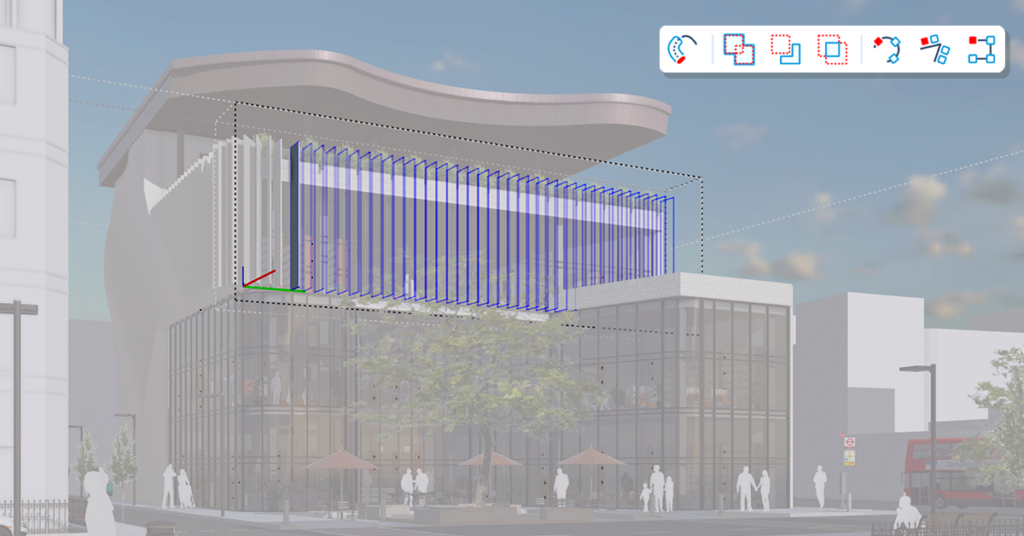
SketchUp Desktop 2027 introduces editable Procedures for selected modelling tools, including Follow Me and some Solid Tools. Their inputs remain editable, so you can revise the operation as your design develops.
Copy Along: Duplicate groups or components along a path with adjustable spacing.
Follow Me: Use multiple extrusion profiles within groups or components while retaining existing materials and attributes.
Solid Tools: Keep supported operations editable, so you can refine them as your design develops.
Edit when needed: Adjust a procedural component’s inputs without rebuilding its geometry.
Ready to Get More from SketchUp 2027?
Whether you’re updating your workflow or building new skills, SEEIT3D offers SketchUp training and support for designers and teams.
At SEEIT3D, we’re building personalised, bespoke training solutions around your workflow to help you get the best outcome. Speak with us about integrating SketchUp 2027’s new features into your plan for the year ahead.
Section Fill Hatches: Clearer Technical Sections
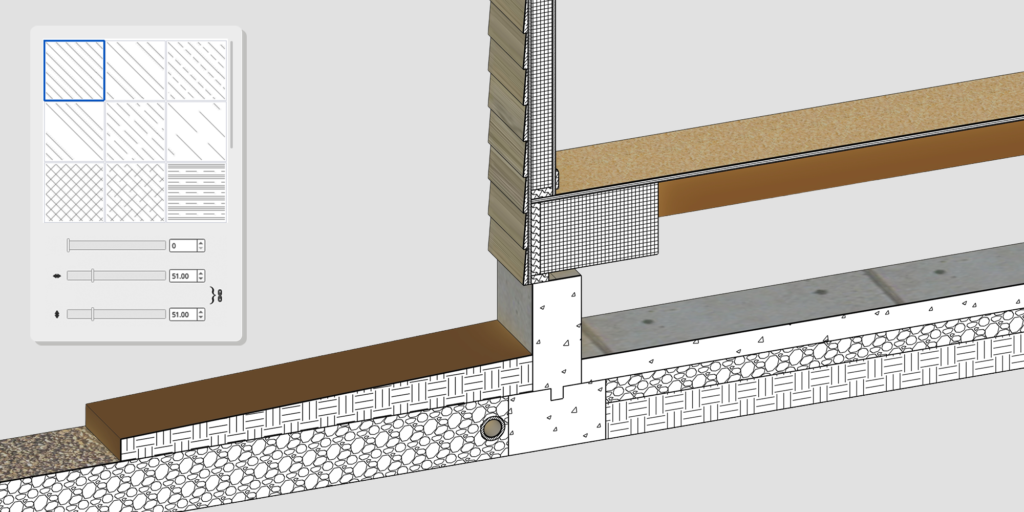
SketchUp 2027 adds Section Fill Hatch Patterns to help distinguish different layers inside a solid object. You can manage the patterns in the Hatch Patterns panel, Entity Info or the Styles panel.
Use hatch patterns in section fills to distinguish layers within a solid object.
Manage patterns from the Hatch Patterns panel, Entity Info, Materials or Styles.
Choose a default pattern or import your own using an
.skhfile, an image or a.PATfile.
AutoFit Live Components in SketchUp Desktop 2027
SketchUp 2027 introduces AutoFit, an interactive placement method that configures a Live Component when you drag it onto a face in your model.
AutoFit placement lets you:
- Preview placement as you move a Live Component over a face
- Place a component on a flat face inside a group or component
- Adjust the component’s orientation during placement
AutoFit previews where a Live Component will sit as you move it over a face. You can place components on flat faces inside groups or components without opening or exploding them.
During placement, adjust the component’s origin and alignment direction—for example, to orient deck boards or tile patterns. Check the result in your model before using it in project documentation.
LayOut Updates in SketchUp Desktop 2027
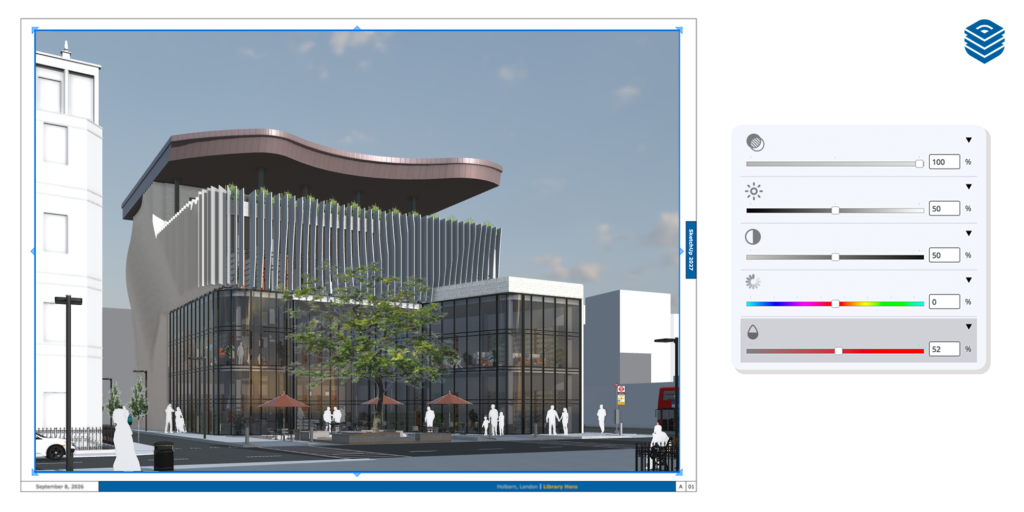
SketchUp Desktop 2027 adds Draw Mode for Scaled Drawings, a paperless canvas for drawing at full size using real-world coordinates. LayOut also adds Image Adjustments for SketchUp viewports and image assets
Key Benefits
- Draw at full size using real-world coordinates in Draw Mode
- Use a selected SketchUp viewport to set the Scaled Drawing context
- Adjust raster or hybrid viewport images and image assets in LayOut
- Use Hide and Fade controls in the Scaled Drawing panel
Create Better Drawings with LayOut 2027
Explore how LayOut’s Draw Mode and viewport Image Adjustments could fit your documentation workflow. SEEIT3D offers training to help you build confidence with SketchUp and LayOut.
Manage Multiple Models in SketchUp Desktop 2027
SketchUp and LayOut now let you open and modify multiple models or documents within one application instance, using tabs and floating windows.
Why This Matters
- Open and modify multiple models in one SketchUp instance
- Switch between documents using tabs or floating windows
- Use multi-document management in both SketchUp and LayOut
A More Consistent SketchUp Interface on Mac and Windows
SketchUp 2027 brings a more consistent interface to Windows and macOS. Mac users get dockable toolbars and panels, while both platforms include updated toolbar styling and a dockable Ruby Console.
Workflow Improvements Include
- Dockable toolbars and panels on Mac
- A revised Materials interface and library on Mac
- A dockable Ruby Console on both Windows and Mac
- Updated toolbar styling on both platforms
More SketchUp Desktop 2027 Workflow Updates
SketchUp Desktop 2027 also adds Coordinate Reference System support in Add Location, helping you geolocate a model using your project’s coordinate system. Outliner can now sort component instances by tag as well as by model hierarchy.
Improved CAD, BIM and USD File Workflows
SketchUp Desktop 2027 adds more DWG and DXF import and export controls, updates IFC workflows, improves TrimBIM and IFC parity, and expands USD support to include USD, USDA and USDC formats alongside USDZ.
- New DWG and DXF options cover import tessellation quality, metadata and annotation handling, plus mesh controls for export.
- Updated IFC workflows and improved TrimBIM/IFC parity
- Support for USD, USDA and USDC, alongside USDZ
Should You Upgrade to SketchUp Desktop 2027?
SketchUp Desktop 2027 may be worth exploring if your work involves repeated geometry, section drawings, Live Components or LayOut. Before upgrading, check your computer’s requirements and extension compatibility, then test a copy of a typical project.
Check compatibility before upgrading: SketchUp Desktop 2027 requires Windows 11 on Windows PCs and an Apple silicon Mac. If you use Windows 10 or an Intel Mac, SketchUp’s official guidance is to install SketchUp 2026.
We recommend upgrading if you:
- Want to try editable Procedures or Copy Along
- Use hatch patterns to distinguish layers in section views
- Work with Live Components and want to try AutoFit
- Create scaled drawings or adjust viewports in LayOut
- Need the updated multi-model or file exchange workflows
- Have a computer that meets SketchUp 2027’s system requirements
If your workflow depends on productivity and collaboration, this update delivers meaningful benefits rather than just cosmetic changes.
Frequently Asked Questions
SketchUp Desktop 2027 adds editable Procedures, Copy Along, Section Fill Hatch Patterns, AutoFit Live Components and new LayOut tools. It also adds multi-model management and updates file exchange workflows.
No. SketchUp 2027 requires Windows 11. Windows 10 users should check SketchUp’s system requirements and supported-version guidance before upgrading.
No. SketchUp 2027 requires an Apple silicon Mac. Intel Mac users should check SketchUp’s compatibility guidance before upgrading.
SketchUp’s What’s New page lists several headline features—including Procedures, AutoFit Live Components and LayOut updates—for Pro and Studio. Check the current feature comparison for plan-specific availability.
Final Thoughts
SketchUp Desktop 2027 brings editable modelling tools, section hatch patterns and new LayOut features, alongside updates to site positioning and file exchange. Whether to upgrade depends on your workflow and computer. Check compatibility and test a copy of a typical project before moving essential work to the new version.
Ready to Explore SketchUp Desktop 2027?
Need help choosing a subscription or planning your next steps? Speak with SEEIT3D about SketchUp advice, training and workflow support.
Time to look at upskilling and being better than you imagined using SketchUp? contact us