
3D Design Software | 3D Modeling Rendering and AI | Sketchup services
3D Design Software | 3D Modeling Rendering and AI | Sketchup services
SketchUp for iPad is the new, versatile way to create, edit, and view 3D models whether you’re on a job site, on the go, or in the office. With support for Apple Pencil, multi-touch gestures, and mouse and keyboard, you can harness the power of 3D your way. Quickly draw, swipe, and click to bring the form to your creative vision.
We knew sketching on an iPad would be a game-changer for various workflows, so we were eager to get the inside scoop from several of our SketchUp for iPad beta users.
Our lucky betas fancy everything from exploring designs on a job site to being able to jot down early-stage concepts quickly. Other notable callouts include easily reviewing and marking up designs from team members, studying the details of a design, and cutting down the back-and-forth time it takes to go from RFI to an on-site solution. We’re going to pause here and let you read for yourself a hot sampling of the inbound we’ve received from the SketchUp-verse.
We’ve been exploring and experimenting with SketchUp for iPad in our workflow, and the possibilities are endless. I use SketchUp for iPad during the initial conceptual design phase. To unleash your creativity at the start of a concept, you need tools that are easy to use – tools similar to sketching on a physical piece of paper, and SketchUp for iPad is precisely this.
My workflow typically starts by importing a geo-referenced location to get the scale correct, and from there, I create massing models. This helps me and the team understand the building’s scale and the surrounding context. And, since there’s a seamless integration between desktop and iPad, I can work across both on the same project.
Another SketchUp for iPad use case is carrying out detailed studies of aspects of a particular design. For example, I can import an image clip or floor plan and extrude objects, or focus on one area and detail it out.
I’m also excited about being able to easily import 3D Warehouse models into my iPad designs, which has helped speed up my workflow.
It’s been liberating. I enjoy the mobile aspect because I can take my design work anywhere. The past couple of years has brought a new perspective to how we work and fast-tracked our ability to work away from the office. Work needs to be easily transportable, and with SketchUp for iPad, it is.
On top of all of that, this completely new interface incorporates robust, intuitive modeling capabilities developed specifically for iPad . SketchUp for iPad has the professional features you need with the simplicity you desire. Explore the highlights:
To solve the trickiest design problems, you need the right tools. Here’s why SketchUp and iPad are the perfect (design) pair:
We’ve also got all of your core modeling bases covered with a few old friends you’ll be happy to see – Entity Info, Shadows, Styles, Materials, Add Location, Tags, Scenes, Image export, Animation export, access to 3D Warehouse…and so much more. After all, this is the SketchUp you know and love, just on an iPad.
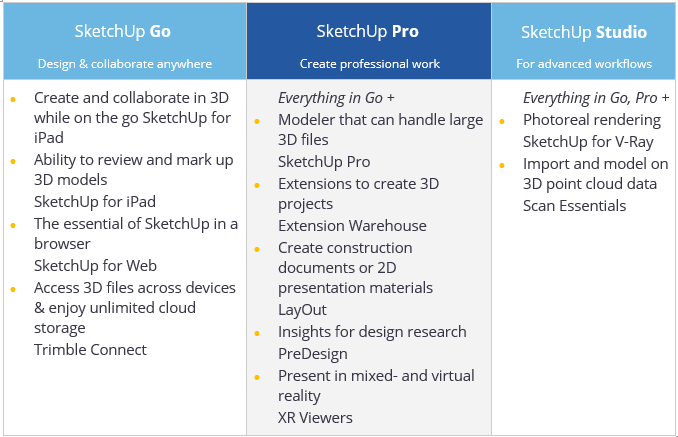
Trimble’s cloud-based project management solution, Trimble Connect, is now available at your fingertips. With Trimble Connect, you can work on whatever device you need – from SketchUp Pro, SketchUp for iPad, and SketchUp for Web. You’ll always have access to the latest file, so whenever work calls, you’ll be prepared to answer.
Once you’re in the app, check out the ‘Learn’ tab on the left-hand side of the Home screen. We’ve developed in-app tutorials to help get you up to speed, fast. Whether you’re just starting, or you’ve been around the SketchUp block a time or two, you’re sure to pick up some helpful iPad modeling tips.
Want to learn even more about the features and how to get started? Check out our Help Centre for the full scoop.